Your Galaxy.
On your Mac.
Test your app on the Galaxy you use every day. Leave the USB cable in the drawer and control your phone with your Mac’s mouse and keyboard.
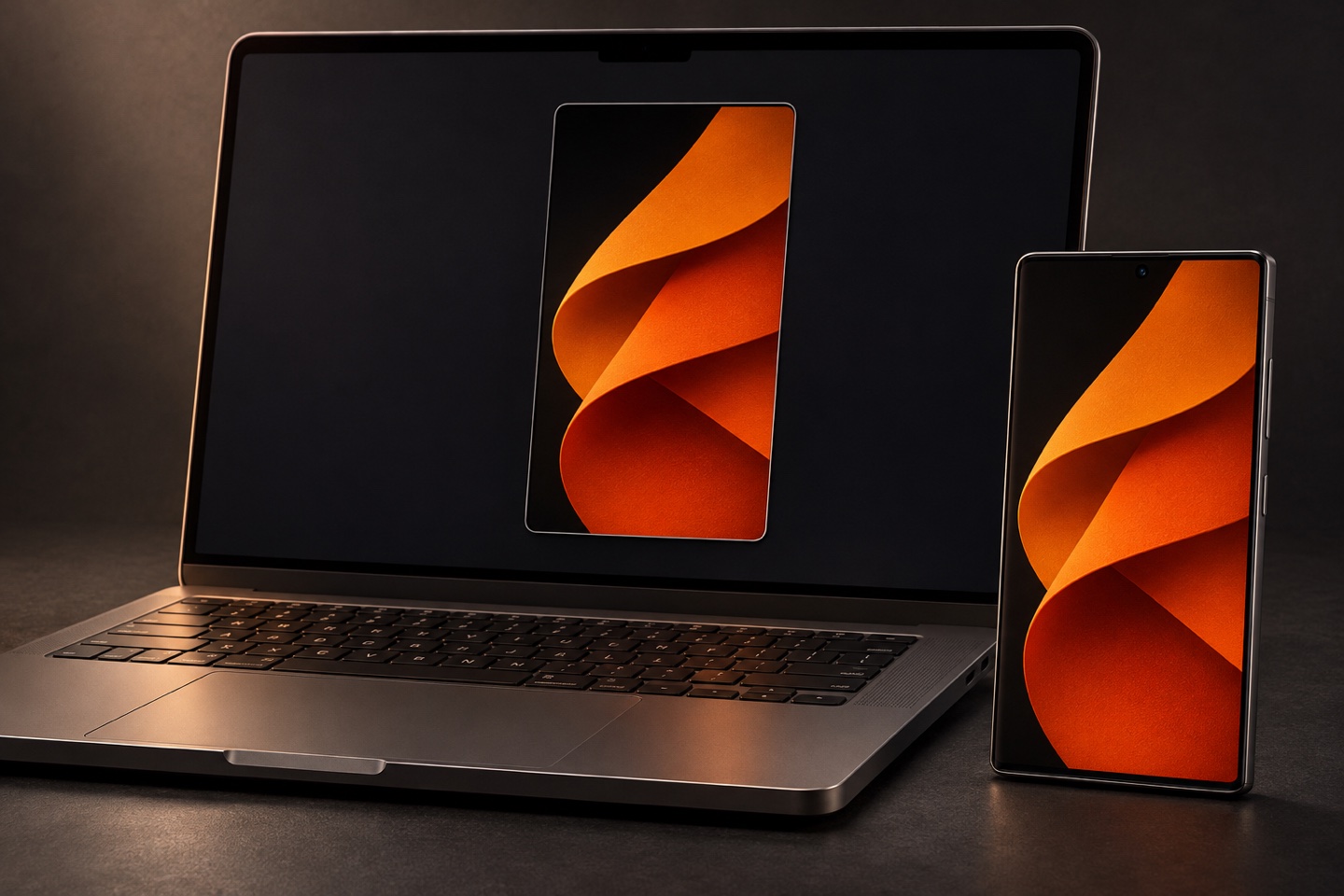
A real phone in your Mac workflow
Just one Mac app to install
Galaxy Mirror includes the tools it needs. Skip Homebrew, Android Studio and Terminal. Enable wireless debugging on your Galaxy and pair with a six-digit code on the same Wi-Fi.
Keep your Galaxy beside your code
See how your app looks and behaves on your own phone as you work. Keep the mirror window on top, or give it a separate monitor so your main display stays free.
Pick up where you left off
If your Mac wakes or Wi-Fi returns during a mirroring session, Galaxy Mirror looks for the last phone you used. Closed the window yourself? Press ⌃⌥⌘G to open it again.
Keep your phone screen on your network
Your Galaxy sends its screen directly to your Mac over local Wi-Fi. Mouse and keyboard input travel back over the same connection. No account or cloud relay is needed.
Requirements
- Mac with Apple silicon
- macOS 14 or later
- Mac and phone on the same Wi-Fi
Your first connection
Get a code on your Galaxy
Open Settings, then Developer options, Wireless debugging, and Pair device with pairing code.
Enter the six digits on your Mac
In Galaxy Mirror, enter the code under “Pair a phone”, then choose “Pair and open”.
Reopen it from the menu bar
With wireless debugging on and both devices on the same Wi-Fi, choose “Open phone screen” from the Mac menu bar.
Download for Mac
When Galaxy Mirror launches, you’ll find its Mac App Store link here.
How long does the free beta run?
The public beta runs for 15 days from its launch. Everyone has the same end date, including anyone who reinstalls the app.